How to uninstall software in Windows 10 or 11
Discover expert IT tips, troubleshooting advice, and cybersecurity insights on our modern blog. Enjoy a user-friendly interface, fast loading times, and strategic ad placements optimized for Google AdSense. Join us for the latest software reviews and tech trends, all designed for a seamless reading experience.
5/8/20241 min read
In Windows 11, you can uninstall software using different methods. Here’s how:
Method 1: Using Settings (Recommended)
1️Open Settings
Press Win + I to open Settings.
2️ Go to Apps
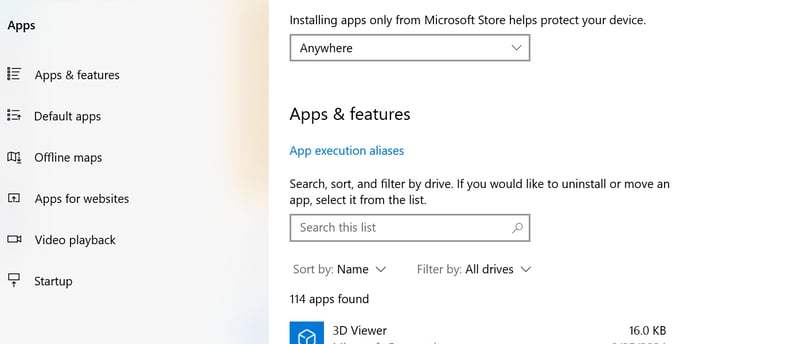
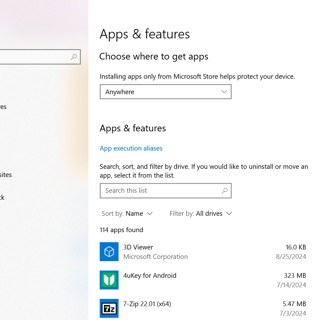
Click "Apps" > "Installed apps".
3️ Find the Software
Scroll through the list or use the search bar to find the program.
4️ Uninstall the Software
Click the three dots (⋮) next to the program and select "Uninstall".
Confirm the uninstallation and follow any additional prompts.
Method 2: Using Control Panel
1️ Press Win + R, type control, and press Enter.
2️ Go to "Programs" > "Programs and Features".
3️ Find the program, click on it, and select "Uninstall".
Method 3: Using Command Prompt (For Advanced Users)
1️ Open Command Prompt as Administrator (Win + X → "Terminal (Admin)").
2️ Type the command: powershell
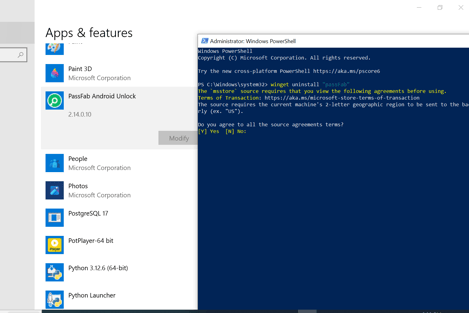
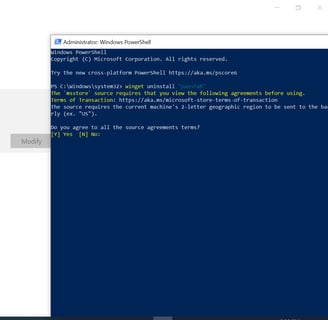
Then: winget uninstall "Program Name"
Replace "Program Name" with the actual name of the software.
3️ Press Enter and follow the prompts.
Your Problem will resolve.