
Your device has run into a problem and needs to restart. your pc ran into a problem and needs to restart we're just collecting some error info windows 10, 11
When your laptop shows the message "Your device has run into a problem and needs to restart", it usually means that Windows has encountered a critical system error, commonly known as the Blue Screen of Death (BSOD)
SI Reza
2/12/20251 min read
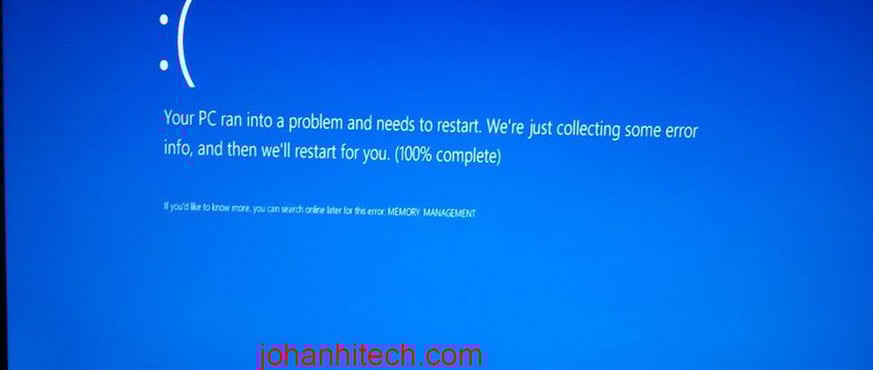
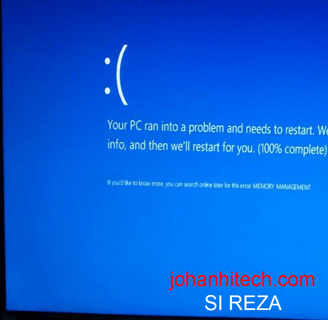
This can happen for several reasons, such as:
1. Hardware Issues
Faulty RAM: Bad memory modules can cause system crashes.
Overheating: If your laptop overheats, it may shut down unexpectedly.
Hard Drive/SSD Problems: Corrupt sectors or failing storage devices can trigger BSOD errors.
2. Driver Issues
Outdated or Corrupt Drivers: If a driver (especially graphics, network, or chipset) is outdated or corrupted, it can cause system crashes.
Incompatible Drivers: Installing a driver that isn’t compatible with your Windows version may lead to errors.
3. Software Conflicts
Recent Software Installations: If you recently installed a new application or update, it might be causing conflicts.
Malware or Virus Attacks: Some malware can corrupt system files, leading to crashes.
4. Windows Update Issues
Failed or Buggy Updates: Sometimes, a Windows update may be buggy or fail during installation, causing system instability.
5. Corrupt System Files
Damaged Windows Files: If system files are missing or damaged, Windows may crash unexpectedly.
How to Fix the Issue?
Basic Troubleshooting
Restart your laptop and check if the issue persists.
Ensure your laptop is not overheating.
Remove any external devices (USB drives, external hard disks) and restart.
Advanced Fixes
Check for Windows Updates: Go to Settings > Update & Security and install any pending updates.
Update Drivers: Use Device Manager to update important drivers, especially graphics and chipset drivers.
Run System File Checker (SFC Scan):
Open Command Prompt (Admin).
Type: sfc /scannow and press Enter.
Check for Malware: Run a full scan using Windows Defender or an antivirus program.
Check RAM & Hard Drive:
Use Windows Memory Diagnostic to check RAM issues.
Use CHKDSK to scan the hard drive (chkdsk /f /r in Command Prompt).
If the issue persists, do you see any specific error code on the blue screen? Let me know, and I can help with a more precise solution! 😊